Settings and Flow Settings
Two places hold options. Settings (on the left) are the app's, for every flow on this computer. Flow Settings (the gear in the title bar) belong to the open flow and travel with it, into exports too.
Settings
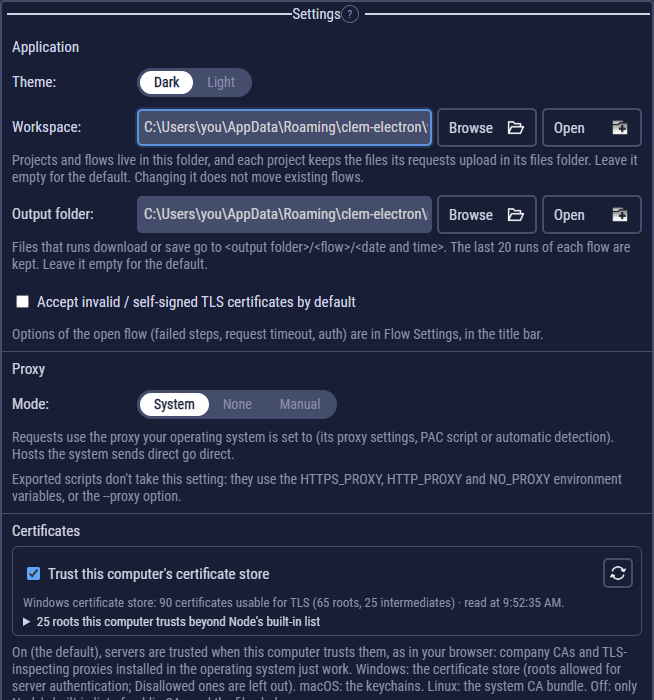
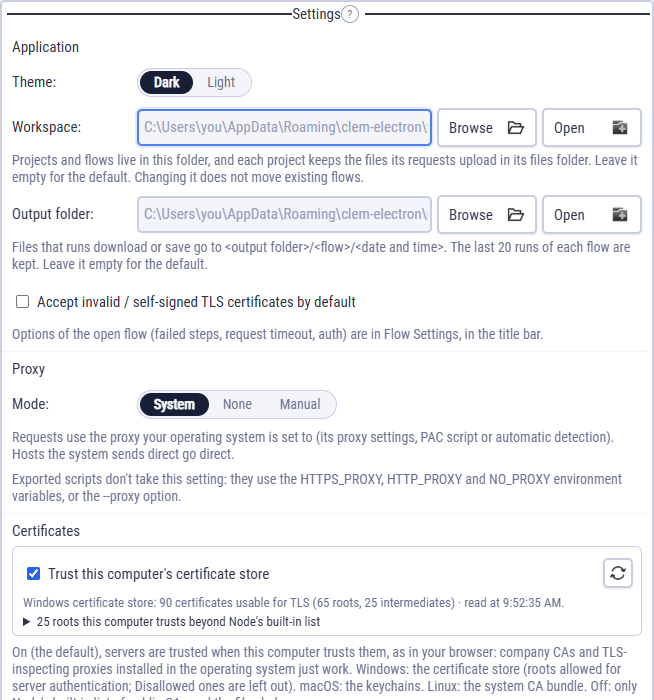
| Setting | What it does |
|---|---|
| Theme | Dark or Light. It previews as soon as you pick it; leaving without saving puts the saved one back. |
| Workspace | The folder of your projects and flows. Empty = the default. Changing it doesn't move existing flows. The workspace. |
| Output folder | Where runs put downloaded and saved files and reports: <output folder>/<flow>/<date and time>. The last 20 runs of each flow are kept. |
| Accept invalid / self-signed TLS certificates by default | For test servers with a certificate nothing trusts. Better: add the server's CA under Certificates. |
| Proxy, Certificates | How requests reach the network. Proxy, certificates and HTTP/2. |
| AI access (MCP) | Whether and how AI clients may use CLEM. AI access. |
In the title bar, the UI size picker sets how big text and controls are: Auto fits them to your screen, or pick a fixed size from 70% to 150%. The window opens at the smallest size that fits the whole layout at that size, and picking another size puts it back at that one's; drag its edges, snap it to half the screen or use the maximize button next to ✕ (or double-click the title bar) to make it bigger. A bigger window doesn't enlarge anything: it shows more. The steps column gets a little wider and the editor and logs column gets the rest. In the left menu, Settings, Help and Run Flow move to the bottom left corner. When a step's editor is open, it sits above the logs and is as tall as its fields, pushing the logs down. The CLEM logo opens About, with the app icon (its check fills with green as it opens), the version and two links: Open-source licenses opens the list of open-source software CLEM uses, with each license, and Chromium licenses opens the licenses of Chromium and Node.js, which come with Electron.
Flow Settings
The gear in the title bar. These options are saved in the flow.
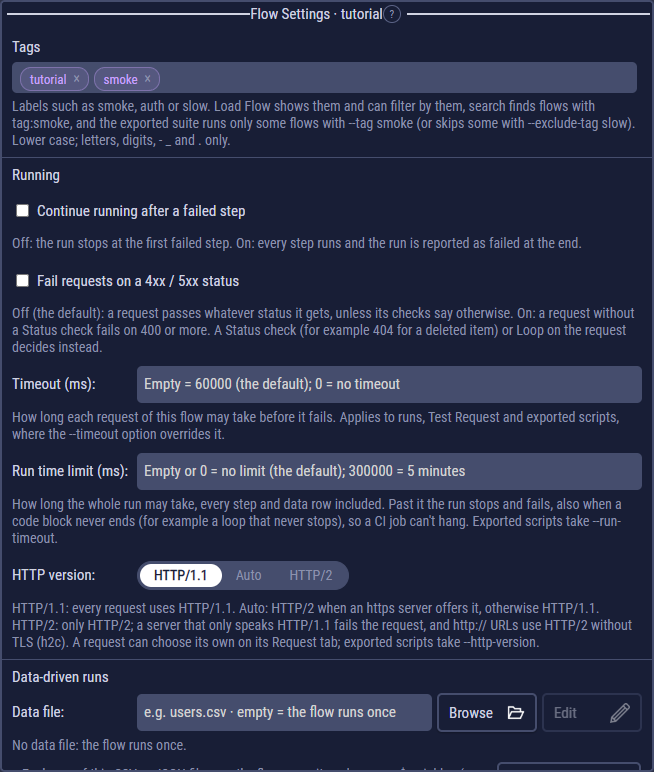
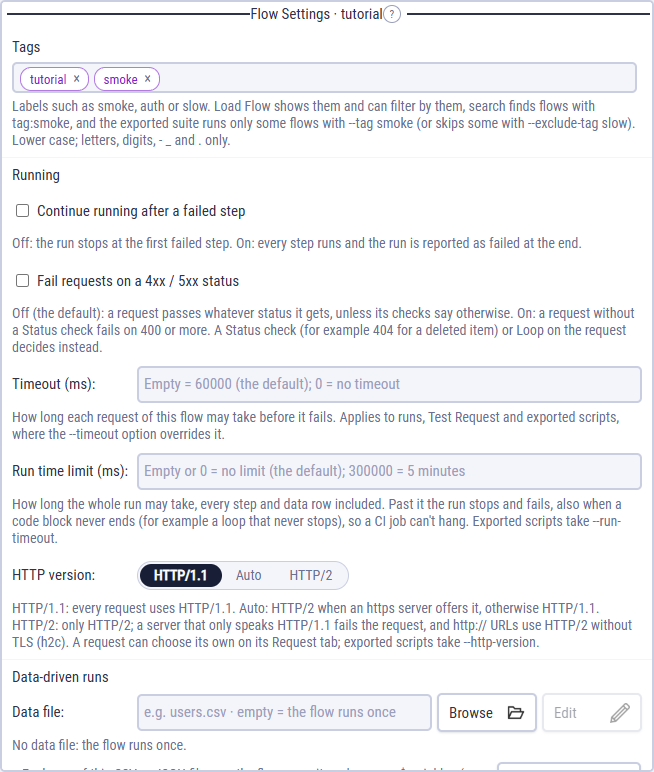
| Section | Option | More |
|---|---|---|
| Tags | Labels to find, filter and pick flows | Tags |
| Running | Continue running after a failed step: off, the run stops at the first failed step; on, every step runs and the run is reported as failed at the end. | Running |
| Fail requests on a 4xx / 5xx status: off (the default), a request passes whatever status it gets unless its checks say otherwise; on, a request without a Status check fails on 400 or more. | Checks | |
Timeout (ms): how long each request may take before it fails. Empty = 60000; 0 = no timeout. Exported scripts take --timeout. | ||
Run time limit (ms): how long the whole run may take. Past it the run stops and fails, also inside a code block that never ends. Empty or 0 = no limit. Exported scripts take --run-timeout. | Run time limit | |
| HTTP version: HTTP/1.1, Auto or HTTP/2 for the flow's requests. | HTTP/2 | |
| Data-driven runs | A CSV or JSON file: the flow runs once per row. | Data-driven runs |
| Cookies | Cookies the jar holds before the first request. | Starting cookies |
| Auth for every request | The auth requests inherit unless their Auth tab sets their own. | Auth |
The rest of the title bar
- Environment: which environment the flow runs with, and Manage environments…. Environments.
- Secrets (the lock): the project's secrets; its dot says whether every secret has a value. Secrets.
- Save, and undo / redo next to the flow's name. Undo and redo.