Running, logs and reports
Run a flow with F5, read what every step did in the log, and write HTML reports of a flow or of a whole project.
Running a flow
Run Flow (F5) runs the open flow, top to bottom; the button becomes Stop while it runs. Each step's marker turns green or red as it finishes.
- By default a run stops at the first failed step. Flow Settings → Continue running after a failed step runs every step and reports the run as failed at the end. Always run steps run either way.
- Stop ends a run at once, even an endless loop.
- A run uses the flow as it is on screen, saved or not.
Run time limit
A flow that waits for something that never comes (a job that never finishes, a loop that never ends) would run until you stop it. In CI nobody is there to press Stop, so give the flow a limit:
- Open Flow Settings (the gear in the title bar).
- Under Running, set Run time limit (ms), for example
300000for 5 minutes. - Save the flow. The limit travels with it, into exported scripts too.
The limit counts the whole run: every step and every data row. When it passes, the run stops and is reported as failed, with Run time limit reached in the log and the reports. "Always run" steps and later rows don't run after it. A code block is cut off as well, even while (true) {}; code that never gives control back after an await ends the runner 5 seconds later, with the same message. Empty or 0 means no limit, the default.
Exported scripts and the suite take --run-timeout <ms>, which overrides the flow's limit (--run-timeout 0 removes it). See Export and CI.
The run menu
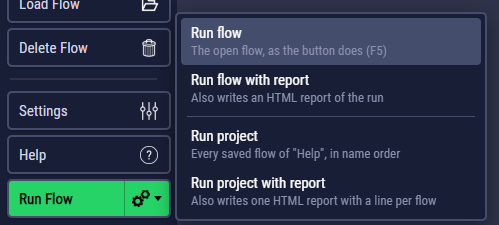
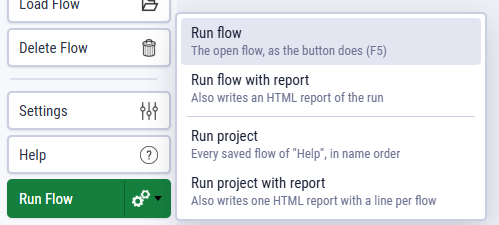
The play icon at the right end of Run Flow (or ↓ on the button) opens more ways to run:
| Item | Does |
|---|---|
| Run flow | The same as clicking the button. |
| Run flow with report | Also writes an HTML report of the run. |
| Run project | Runs every saved flow of the open flow's project. |
| Run project with report | The same, with one report for all of them. |
Reading the log
Each run adds a block to Logs & Responses:
- The variables the run started with, grouped by where they came from: the flow, the environment, a data row, the command line.
- One line per step: PASSED, FAILED or SKIPPED (and why), with its time.
- Under a request: its status and time, its checks, extracted values, cookies and Response details, which shows the request that was sent and the response with its headers and body.
- Under a code step: what it logged, the variables it changed, the requests it sent, and the error and line if it threw.
- At the end, the totals: steps and checks passed and failed.
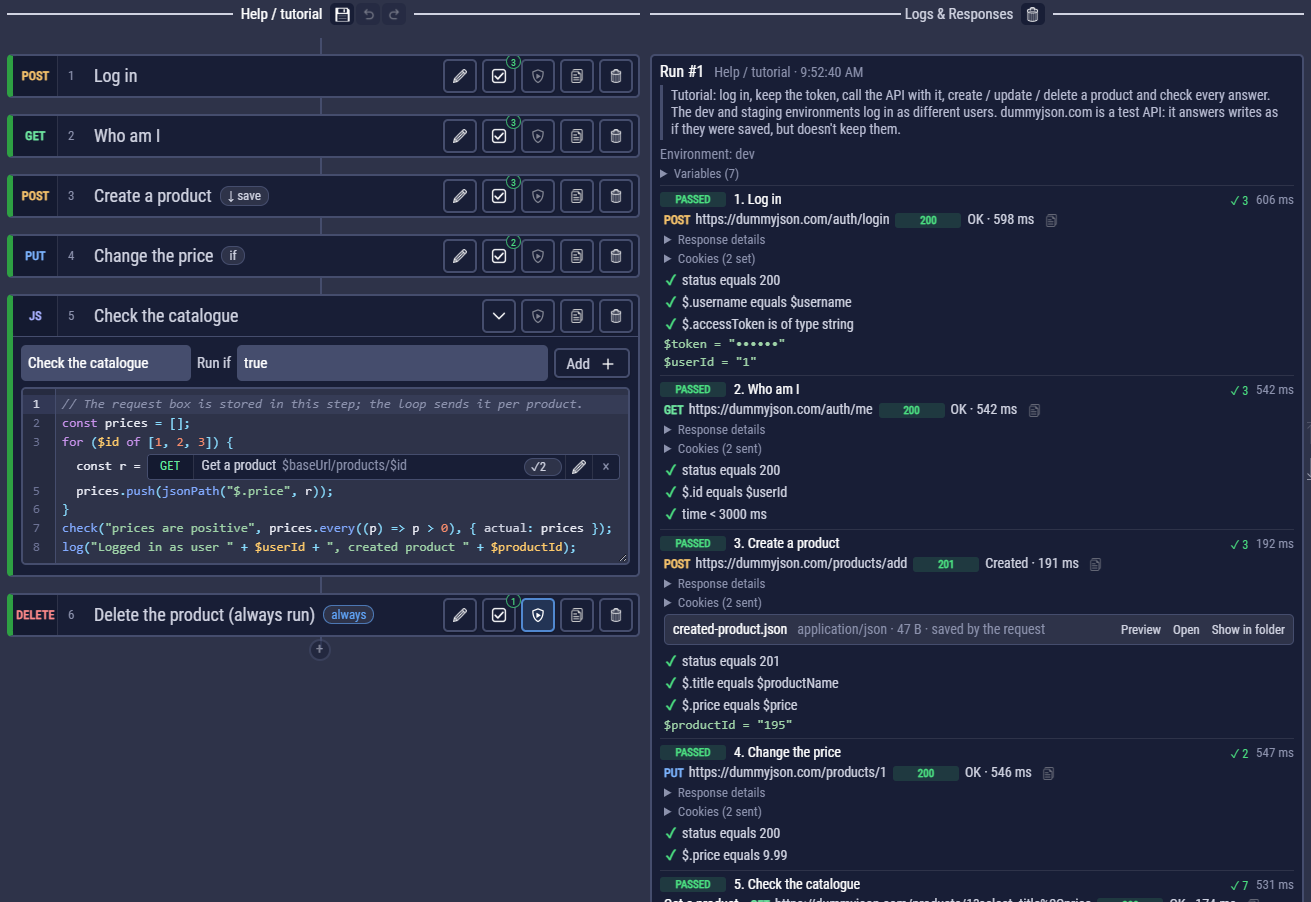
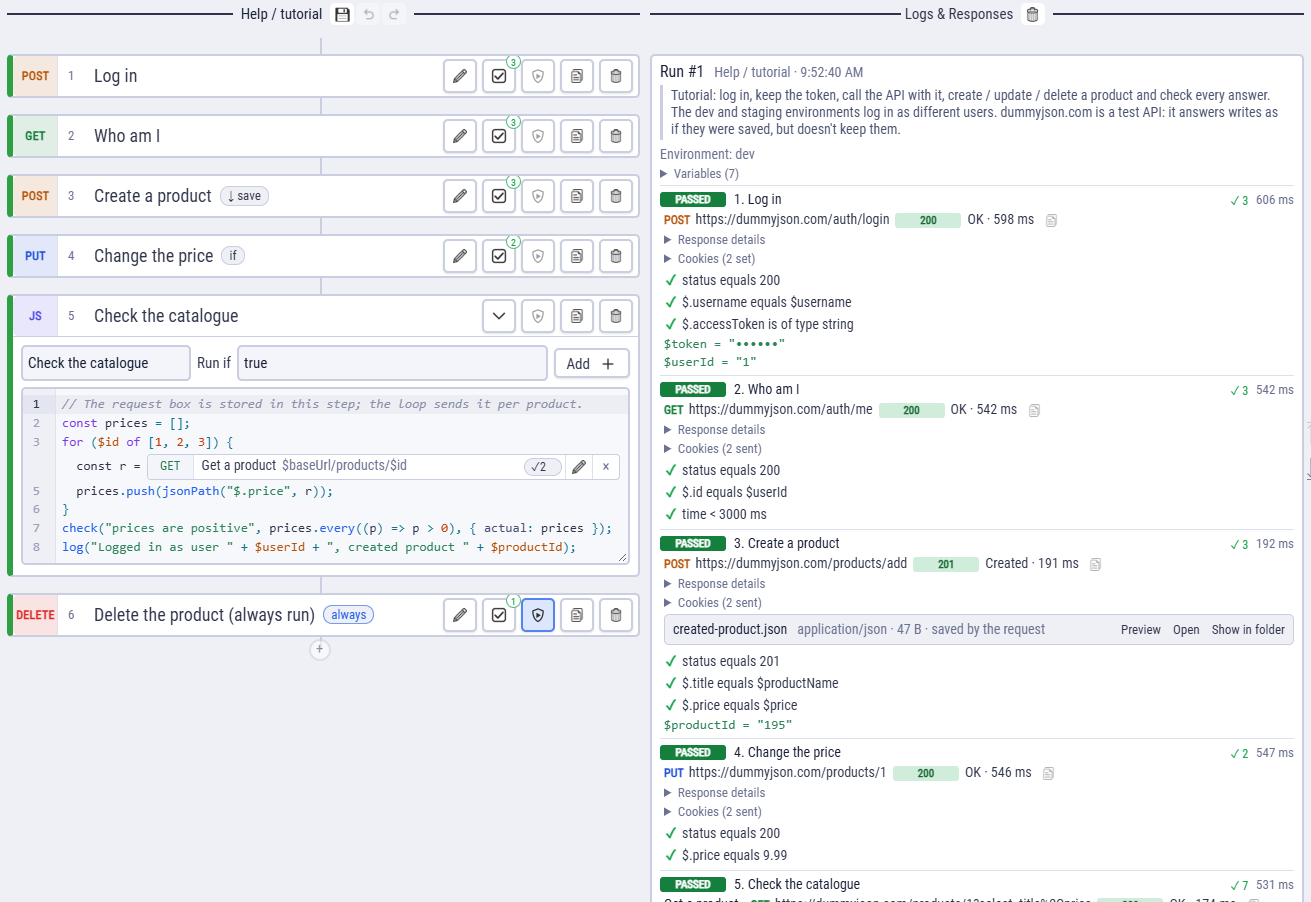
Bodies are shown with viewers: JSON and XML as trees, CSV as a table, images and PDFs as previews, nothing cut. Copy icons copy a body or the headers; the copy icon at the end of a request line shows it as a cURL (or other) command, with the values it really had. Copy from the log.
The bin in the log's header clears it; the arrows at its side jump to the top or the bottom.
Masked values
Secrets, variables whose names look sensitive (password, token, secret, apikey, auth…) and credential headers (Authorization, Cookie, X-Api-Key…) show as •••••• in the log, the console output and reports. The run itself uses the real values.
Reports
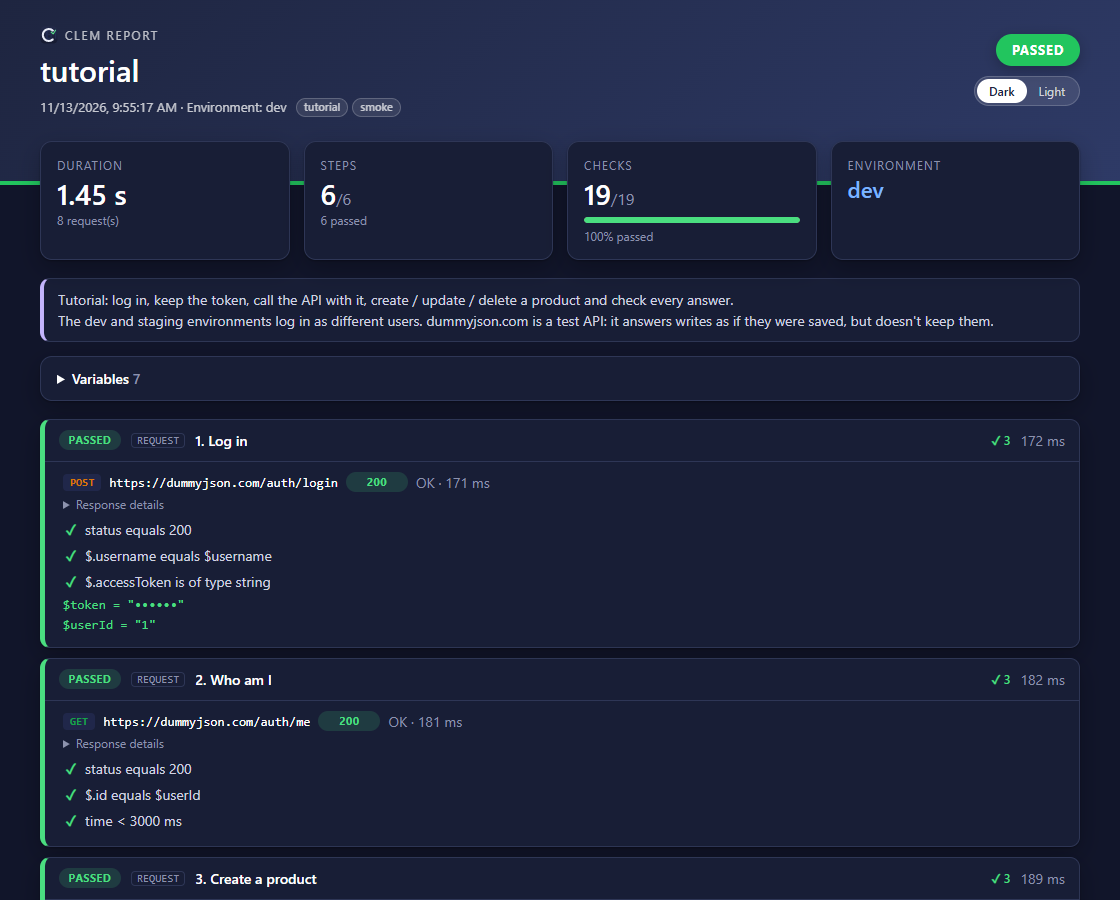
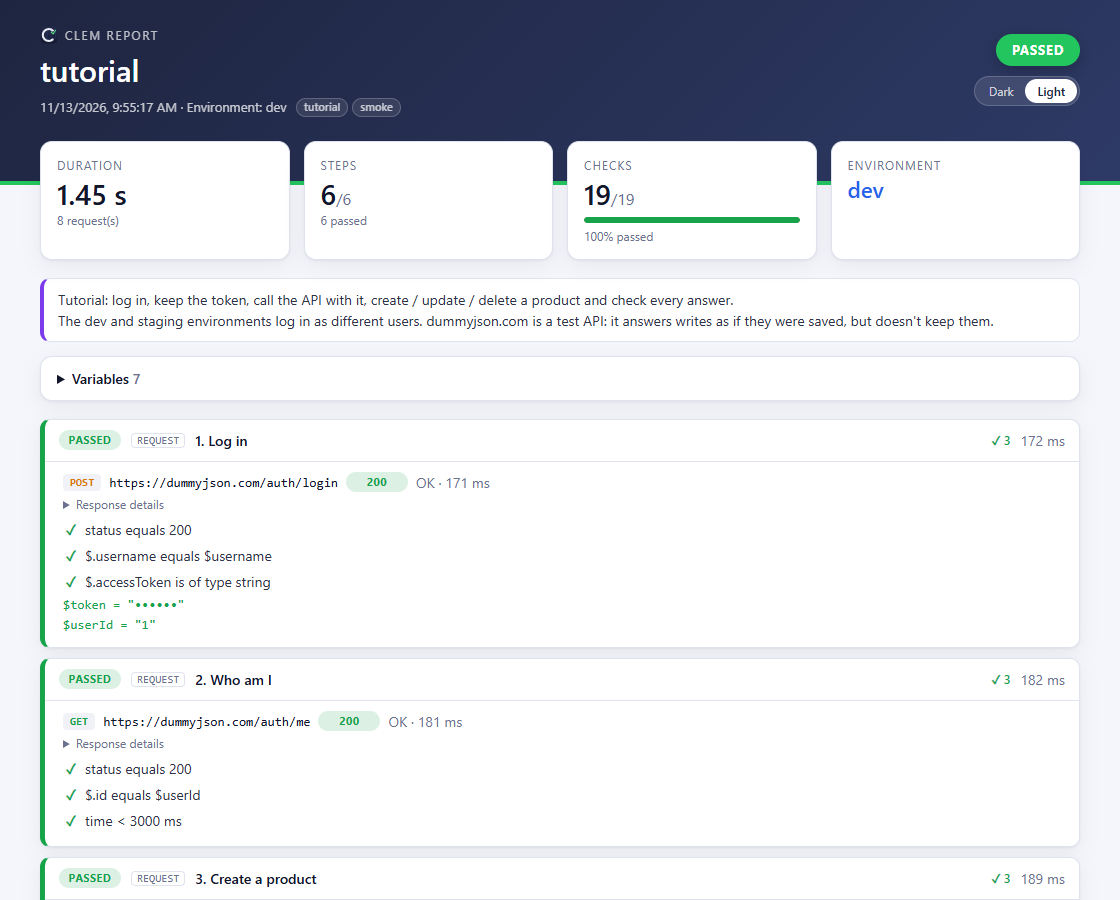
Run flow with report writes report.html, the same report exported flows write with --report, into the run's output folder. The end of the run in the log gets a Report line, whose links pulse for three seconds when it appears: Open shows it in your browser and Show in folder shows the file. It is a single file you can send to anyone: every step, check and response, collapsible, with its own Dark / Light switch.
Running a project
Run project runs every saved flow of the open flow's project, one after another in name order, each in its own process with its own selected environment. A failed flow doesn't stop the others.
- It runs the files on disk. With unsaved changes you can Save and Run or Run Saved.
- The log has one block for the project run, with a row per flow (passed flows fold up, failed ones stay open) and the totals at the end.
- Stop stops the running flow, and no further flow starts.
- Run project with report writes one report with an expandable line per flow into "<project> - project run" in the output folder.
Flows without a project can't be run this way. To run a project in CI, export it.
Where run files go
Downloaded and saved files, and reports, go to <output folder>/<flow>/<date and time>. The output folder is set in Settings; the last 20 runs of each flow are kept.